How to Create an Admin Dashboard
A secure internal area with real metrics, list views and edit actions — not just a page called /admin.
Written and reviewed by Lovable Student — Independent guides, prompts and troubleshooting notes for people building with Lovable. Expert build help provided by PromptSites.com.
Published 24 Aug 2026 · Tested with Lovable as of 24 Aug 2026
Overview
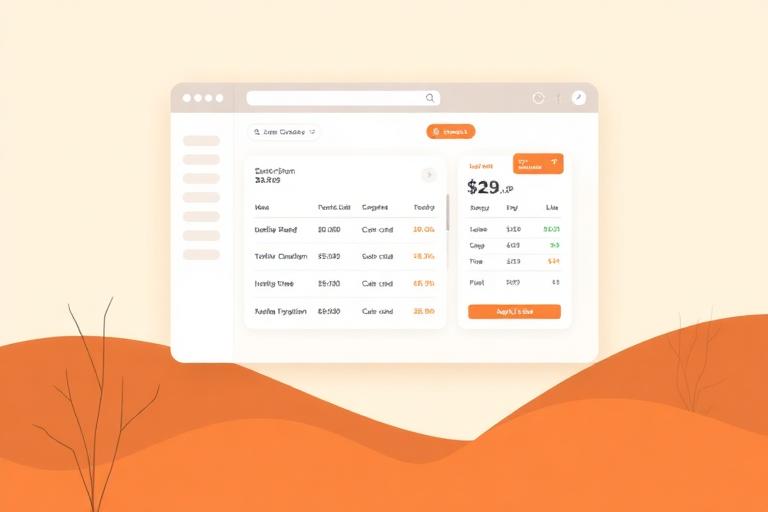
An admin dashboard is a permission boundary with useful views behind it. Get the boundary right first.
Beginner explanation: Anything an admin can do, someone will eventually try to do without being an admin. Assume they will find the URL.
Technical explanation: Gate the route, gate the data with role-aware access rules, and re-check the role inside every privileged server action.
Steps
- Set up roles first.
- Create the admin area behind an authenticated route group.
- Add metrics that answer real questions, not vanity counts.
- Add list views with search and filters.
- Add edit and publish actions with confirmation.
:::tip Pick metrics you would act on. A count you never look at is clutter. :::
What to check afterwards
- Non-admins are blocked at both the page and the data
- Metrics match what is in the database
- Edit actions persist and are auditable
Common problems
- Route protection without data protection.
- Deleting without confirmation.
- Metrics computed in the browser over data that is not fully loaded.
Where people get stuck
If you have followed the steps and the result still is not right, the fastest path is usually to describe the exact behaviour you expected, the behaviour you got, and any error text, then ask for a fix in one focused follow-up prompt. If that loop is not converging, hand it over.
Was this guide helpful?
Related questions
You might also need
- PromptCreate an Onboarding FlowA multi-step first-run experience that saves progress and can be resumed.
- PromptBuild a Client PortalA secure area where each client sees only their own files, updates and messages.
- PromptBuild a CRM With LovableA working contact and pipeline CRM with the data model spelled out, so it scales past the demo.
- PromptBuild an Admin DashboardA gated admin area with metrics, list management and edit actions, protected at both the page and the data.
Prompts that pair with this guide
Create an Onboarding Flow
A multi-step first-run experience that saves progress and can be resumed.
Copy this prompt →Build a Client Portal
A secure area where each client sees only their own files, updates and messages.
Copy this prompt →Build a CRM With Lovable
A working contact and pipeline CRM with the data model spelled out, so it scales past the demo.
Copy this prompt →